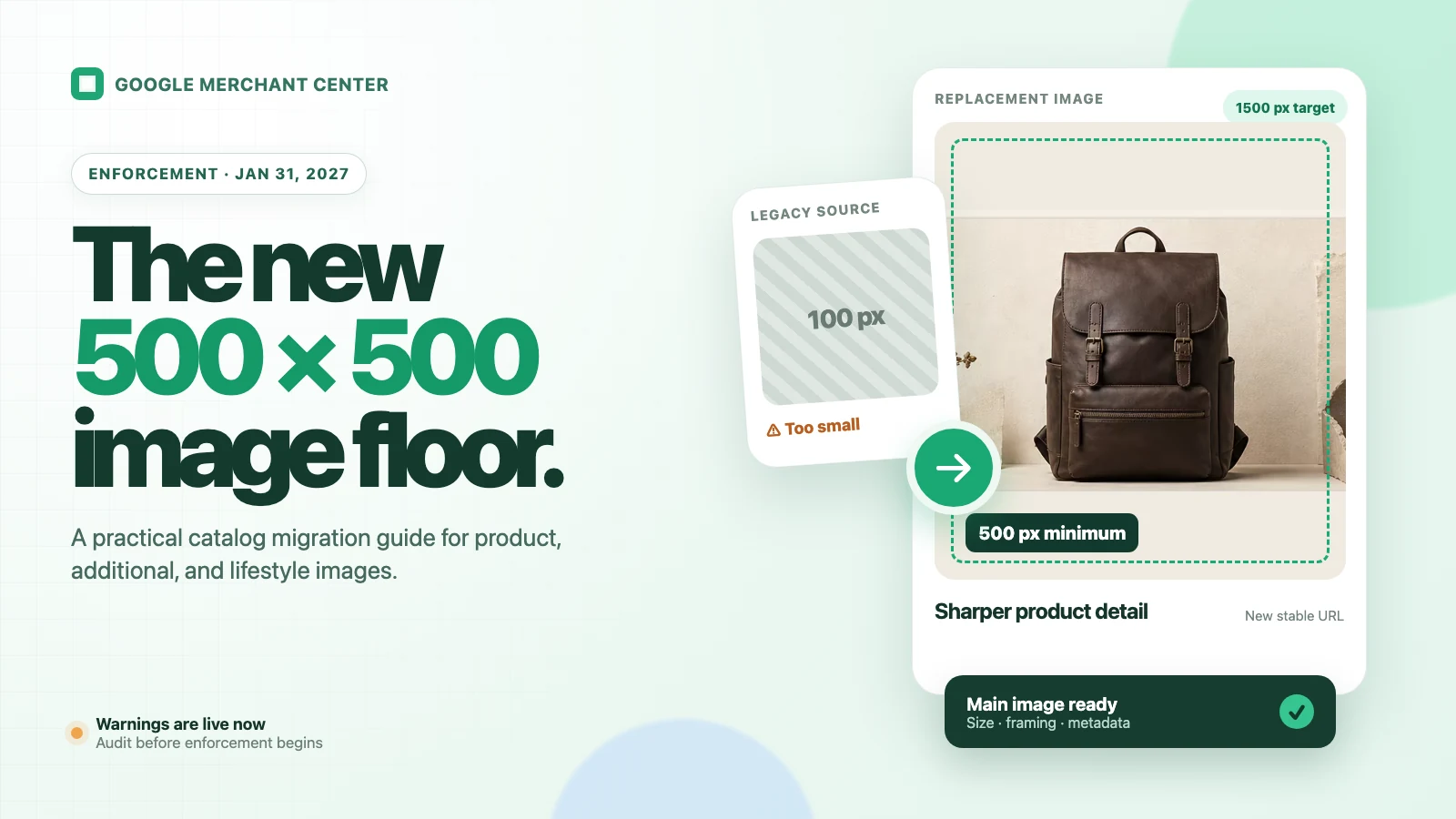
Google Merchant Center will begin enforcing a 500 × 500 pixel minimum for product images on January 31, 2027. Warnings have already been appearing since July 2026 for images that pass the previous minimum but fall below the new threshold.
The practical answer is to audit your catalog now. Do not treat 500 × 500 as an ideal production size, and do not stretch a thumbnail just enough to clear the warning. Google recommends images around 1500 × 1500 pixels or above for performance across listing formats, subject to a maximum of 64 megapixels and 16 MB.
There are also attribute-specific details. A main image that is too small can disapprove the product. An undersized additional image may simply not appear. A lifestyle_image_link already has a higher 600 × 600 minimum, so the new general floor does not lower that requirement.
What changes on January 31, 2027?
Google's Image too small troubleshooting page separates the transition by date and context:
| Date or context | Documented minimum |
|---|---|
| Until January 31, 2027: non-apparel | 100 × 100 pixels |
| Until January 31, 2027: apparel | 250 × 250 pixels |
| Beginning January 31, 2027: all products | 500 × 500 pixels |
| YouTube Shopping ads served on TV | Already 500 × 500 pixels |
Since July 2026, Merchant Center has warned about images that are larger than the old minimum but smaller than 500 × 500. Look for these issue names:
Image too small for upcoming enforcementImage resolution optimizations applied
In some cases, Google may serve an optimized version of an image below 500 × 500 when possible. Treat that as a temporary safeguard, not as a substitute for replacing the source asset.
One official page already displays 500 × 500 inside its general minimum-requirements section, while the troubleshooting page says enforcement begins in January. The safe interpretation is straightforward: 500 × 500 is the migration target now, but not every sub-500 image is necessarily rejected before the enforcement date.
Which Merchant Center image fields are affected?
The word “image” hides three different feed attributes. Their purposes and consequences are not identical.
| Attribute | Purpose | Current guidance |
|---|---|---|
image_link | Required main product image | Move to at least 500 × 500 before enforcement; undersizing can disapprove the product |
additional_image_link | Up to 10 optional supporting images | Must meet the main-image requirements; an undersized additional image may be omitted rather than disapproving the product |
lifestyle_image_link | Up to 5 optional real-world context images | Already requires at least 600 × 600 and an aspect ratio between 2:0 and 2:3 |
This distinction matters during a bulk audit. A warning on the required main image has a different business risk from one supporting image not being shown. Prioritize the required image_link, then repair additional and lifestyle assets according to their own specifications.
The 500 × 500 wording also does not mean that every file must be exactly square. It establishes a minimum width and height. Your chosen aspect ratio still needs to suit the destination, and lifestyle images retain their separate aspect-ratio rule.
How to find every affected product
Google provides a catalog-level workflow; you do not need to open every SKU manually.
- In Merchant Center, open Products and then Needs attention.
- Select View history and review the orange warnings.
- Open the upcoming-enforcement issue with View fix.
- Select Download impacted products to export the affected catalog rows.
- Cross-reference that file with the source that owns each product's
image_linkvalue.
That last step prevents a common operational mistake. If a scheduled feed, Shopify sync, or other integration owns the product data, editing only the Merchant Center copy may be temporary. Fix the image and URL in the system of record, then let the connector submit the corrected value.
Separate the export into at least three queues:
- a new source image is available;
- a high-quality source exists but needs a reviewed resolution increase;
- only a small thumbnail remains and the product must be photographed or reconstructed from reliable references.
This is more useful than applying the same resize action to every warning.
Replace small images instead of stretching thumbnails
Google explicitly advises merchants not to submit thumbnails or scale images up. Changing a 100 × 100 file's dimensions to 500 × 500 with ordinary interpolation creates more pixels, but not more product evidence. Packaging text remains unreadable, edges soften, and compression artifacts become larger.
Use this order of preference:
- Export a larger version from the original photography or design file.
- Re-render the product from a trustworthy high-resolution source.
- Use a super-resolution tool only when the source contains enough real detail, then inspect the result.
- Reshoot the product when no reliable source remains.
Google's free Product Studio includes an Increase resolution feature in Merchant Center and in the Google & YouTube app on Shopify. Google also describes Product Studio as experimental and says it can generate unexpected output. That makes it a remediation option, not an approval guarantee.
After any AI-assisted enhancement, compare the result with the source at 100% zoom. Check:
- product shape, proportions, and included pieces;
- the exact color and material of the variant;
- packaging, labels, logos, and small text;
- edges, reflections, transparent parts, and repeated patterns;
- whether the image introduces props or product features that are not sold.
Passing a pixel check is not enough if the replacement misrepresents the item.
Use 1500 × 1500 as a production target, not 500 × 500
The new threshold is a minimum. Google's current image requirements documentation recommends images around 1500 × 1500 pixels or above to perform across listing formats.
For a square main-image workflow, 1500 × 1500 is therefore a practical target when the source supports it. It leaves more room for product detail and future crops without approaching the documented limits of 64 megapixels or 16 MB.
Before export, validate more than dimensions:
- use a supported format and match the extension to the actual file type;
- show the correct product and variant;
- keep the main product clearly visible and accurately represented;
- avoid promotional overlays, watermarks, borders, and unrelated products;
- aim for the product to occupy 75% to 90% of the main image;
- keep lifestyle images at 600 × 600 or above and within their specified aspect-ratio range.
Google supports JPEG, WebP, PNG, GIF, BMP, and TIFF for these image attributes. Format support does not override the content and size rules.
Give every replacement a new stable URL
Replacing the image bytes while keeping the same URL can delay detection. Google says a changed image at an unchanged URL may take up to six weeks to be detected and recrawled.
For an existing product, Google recommends submitting a new, unique image URL. The new image is typically crawled within three days, and changes usually take 24–72 hours to appear in Merchant Center.
A good replacement URL is both new and stable:
https://cdn.example.com/products/sku-123/main-v2.jpgAvoid URLs whose query string or path changes on every feed run. Once the new asset is accepted, keep that URL stable until the image genuinely changes again.
During processing, Merchant Center may show the product as under review while continuing to serve the prior image. Do not delete the old object immediately if your storefront or feed pipeline still references it.
Preserve AI metadata when creating replacement images
If a replacement image was created with generative AI, resolution is only one part of compliance. Google requires AI-generated images used in image_link, additional_image_link, and lifestyle_image_link to contain metadata identifying their digital source.
Google names these IPTC digital-source values:
TrainedAlgorithmicMediaCompositeSyntheticAlgorithmicMedia
Its AI-generated content guidance specifically says not to remove embedded DigitalSourceType metadata. Check the final exported file—not merely the working file—because an image editor, optimizer, or CDN transformation can remove metadata during export.
Do not add an “AI-generated” badge over the product as a substitute. Promotional overlays and text can violate the image rules, while the requested disclosure belongs in the file metadata.
A migration checklist for teams and agencies
Use this sequence to keep catalog changes reviewable:
- Export the impacted-product report from Merchant Center.
- Identify the system of record for every affected image URL.
- Prioritize required main images before optional supporting images.
- Replace thumbnails from original sources where possible.
- Produce main and additional images at a practical high-resolution target.
- Keep lifestyle images at 600 × 600 or above.
- Review product and variant accuracy after any AI enhancement.
- Preserve required IPTC metadata for AI-generated assets.
- Publish each changed image at a new, stable URL.
- Update
image_linkor the relevant supporting-image attribute. - Re-upload or resync the owning product data source.
- Recheck Needs attention after 24–72 hours.
- Investigate remaining warnings instead of repeatedly changing the URL.
Keep the exported warning report and the replacement mapping. That record makes it easier to confirm that every SKU was repaired and to roll back an incorrect variant image.
Frequently asked questions
Are images below 500 × 500 already disapproved?
Not solely because of the future rule. Google's troubleshooting guidance says enforcement begins on January 31, 2027. Until then, it still documents 100 × 100 for non-apparel and 250 × 250 for apparel, while issuing upcoming-enforcement warnings for images below 500 × 500. Other image violations can still cause disapproval now.
Is 500 × 500 the recommended image size?
It is the future general minimum, not the preferred production target. Google recommends approximately 1500 × 1500 or above when possible. Lifestyle images separately require at least 600 × 600.
Can I enlarge a 100 × 100 thumbnail to pass the rule?
A file can be resized, but Google advises against scaling up thumbnails. Start from an original high-resolution source, use a carefully reviewed resolution-enhancement workflow, or reshoot the product. Inspect every enhanced image for product inaccuracies.
How quickly will Google process a replacement image?
A replacement submitted at a new URL is typically recrawled within three days, and Merchant Center changes commonly take 24–72 hours to appear. Updating the bytes at the same URL can take up to six weeks to be detected.
Do AI-upscaled or AI-generated replacements need metadata?
Google requires generative-AI-created images to retain metadata identifying their digital source. Whether a particular enhancement workflow qualifies should be checked against the tool's behavior and Google's current guidance; never remove existing DigitalSourceType metadata.
Start the audit before the deadline
January 31, 2027 is the enforcement date, not the ideal date to begin. Merchant Center already identifies affected products, and a catalog with old thumbnails may require source recovery, product review, URL changes, and feed synchronization—not just a batch resize.
Use 500 × 500 as the floor, preserve the stricter lifestyle-image rules, and work from the best source available. A replacement should be large enough for Google, but it must also remain an accurate picture of what the customer will receive.
Official sources
Requirements checked on September 2, 2026. Google can revise dates, interface labels, and image specifications, so recheck them before completing a catalog migration.